User Manual
Smart Recessed Lighting Kit
Intended for:FSPC999W-F1
1. Product Overview
Thank you for purchasing Smart Recessed Lighting Kit. This kit adopts the standard Zigbee3.0 communication protocol, compatible with multi-platform use, easy to install, simple to use, and can provide stable and simple wireless control for lighting. With dimming, color adjustment, and other functions, to meet the daily lighting, but also to create a sense of leisure, comfort, and other atmospheres, to meet the needs of your rich personality lighting scene.
2. Technical Parameters
Power supply voltage: 100-120Vac
Rated power: 13W
Power number:0.9
Color temperature: 2700K-6500K+RGB
Color mixing mode: RGBW color mixing
Color rendering index:>90
Lumen:1100LM
Operating frequency: 60Hz
Operating Temperature Range: -25℃~+70
Network protocol standard: ZigBee 3.0
Size:85mm(R)*22.5mm(H)
3. Using the Steps
1.Install the Recessed Lights (refer to Chapter 4 for details).
2.Connect the Matter gateway (refer to Chapter 5, also refer to the gateway operation instructions).
3.Connect the platform to use (refer to Chapter 9 for details).
4.Installation Instructions for Recessed Light
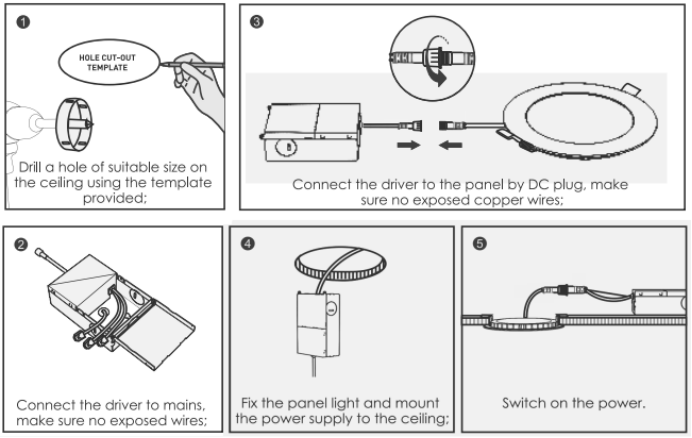

5. Matter Gateway Connection
Connect the gateway to the 5V power supply (Type-C port), and use the cable to connect the gateway's LAN port to the router's LAN port, and the indicator light will turn green for normal use.
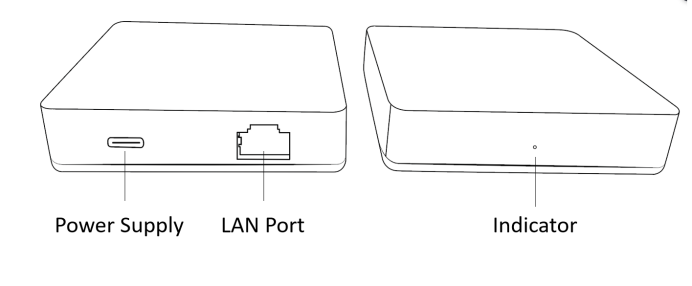
6. Instructions for use
6.1 Use the Homepod to control smart lights
Note: The gateway and Homepod device need to be on the same LAN, and the network is enabled for IPV6.
6.1.1 Add Homepod speaker
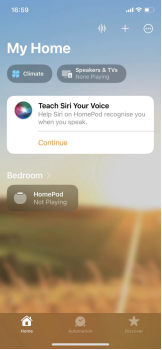
On your IOS mobile device, open the "Home" app and sign in with your Apple ID.
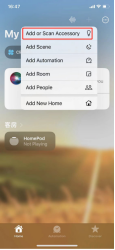
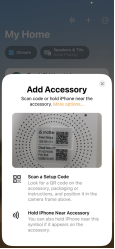
"Home” APP → Upper Right” +" → "Add or Scan Accessories" → Mobile phone close to HomePod, you can scan the device, according to the APP prompts to add the configuration Add the Matter gateway after the Homepod configuration is complete!
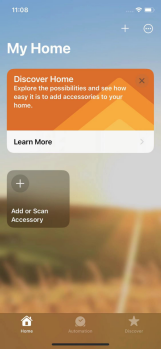
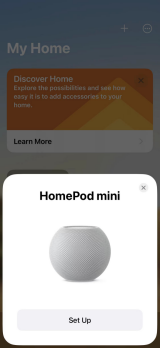
6.1.2 Add Matter Gateway
Note:If the gateway is powered on within 10 minutes and the gateway is powered on for more than 10 minutes, you need to power off and power on again before operation
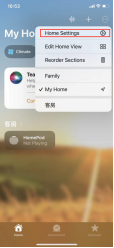
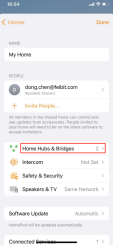
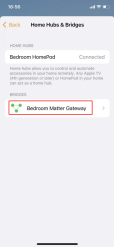
Open the "Home" APP of IOS mobile phone → Upper Right”+" → "Add or Scan Accessories" → Scan the QR code of Matter at the back of the gateway to add it, and add the Matter gateway according to the APP prompts. Add Matter gateway, after adding, you can see the successfully added gateway in "Home Settings" → "Home Hubs & Bridge".
View Matter Gateway
6.1.3 Add lights
Note: Ignore this operation if you have a set of devices
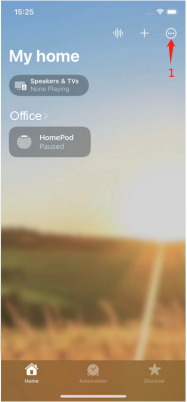
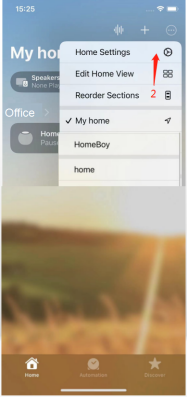
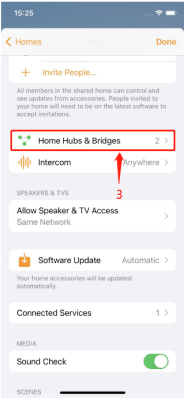
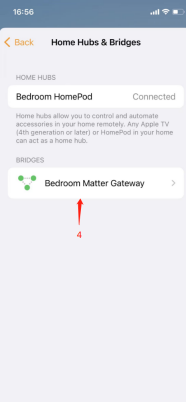
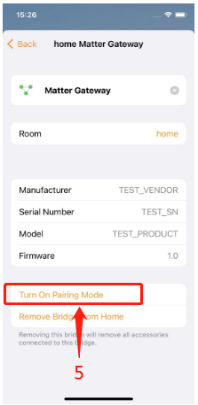
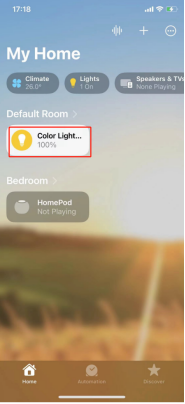
Steps: Open IOS mobile phone "Home" APP → 1 Upper Right "..." → 2 “Home Settings” → 3 “Home Hub & Bridges” → 4 Select the bridged Matter gateway → 5 Turn on pairing mode (triggering gateway allow matching), at this time the Matter gateway began to allow access to the network 120S, the gateway indicator light color gradient, while the trigger light into the network to find the pairing mode (continuous power on/off 5 times), at this time the device will enter the automatic pairing, such as lights to add a successful will be displayed in the device list, at this time you can control the lights, if the device is not found within 120S, reopen to add the steps.
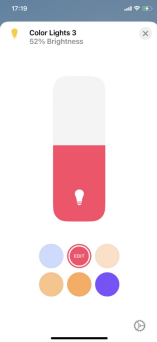
6.2 Use the Alexa Echo to control smart lights
Note: The gateway and the Echo device need to be on the same LAN and the network-enabled for IPV6
6.2.1 Add Echo Speaker
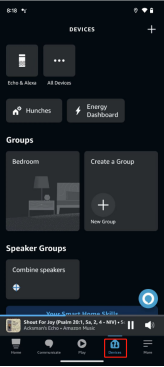
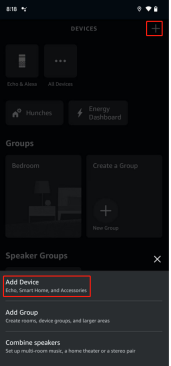
Search and download the "Amazon Alexa" app in the app market, install and register according to the prompts, and open "Alexa" APP → Devices → Upper Right” +" → Add Device →Amazon Echo → According to the APP operating instructions to configure the network, the configuration is complete you can see the Echo speaker in the Devices list.
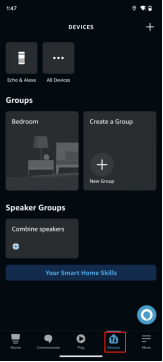
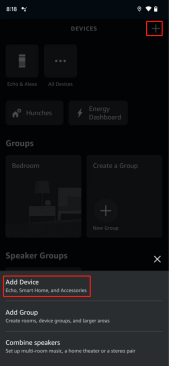
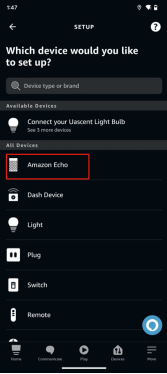
6.2.2 Add Matter Gateway
Note:If the gateway is powered on within 10 minutes and the gateway is powered on for more than 10 minutes, you need to power off and power on again before operation
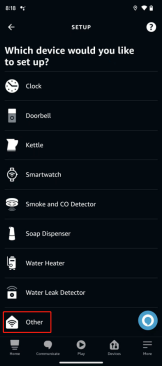
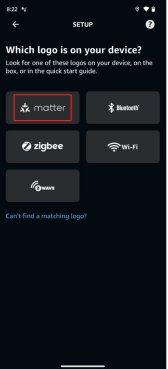
Open "Alexa" APP → Devices → Upper Right”+” → Add Device → Other → Matter → Scan the QR code of Matter on the back of the gateway according to the APP operation guide. If it fails, restore the factory settings of the gateway and add it again.
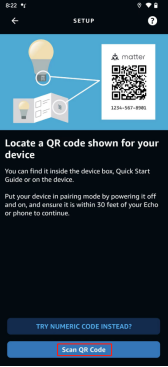
6.2.3 Add lights
Note: Ignore this operation if you have a set of devices
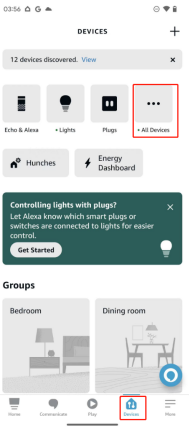
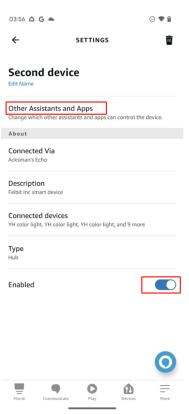
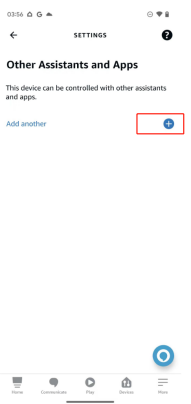
Open the “Alexa”APP → Devices →All Device→ Select the corresponding Bridged Gateway →Open Enaled →Other Assistants and Apps→Add another(triggering gateway allow matching), at this time the Matter gateway began to allow access to the network 120S, the gateway indicator light color gradient, while the trigger light into the network to find the pairing mode (continuous power on/off 5 times), at this time the device will enter the automatic pairing, such as lights to add a successful will be displayed in the device list, at this time you can control the lights, if the device is not found within 120S, reopen to add the steps.
6.3 Use the Google speaker to control smart lights
Note: The gateway and Google Home speaker device need to be in the same LAN and the network is enabled for IPV6
6.3.1 Add Google speaker
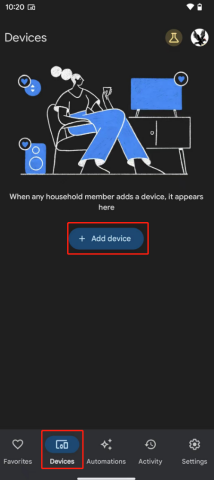
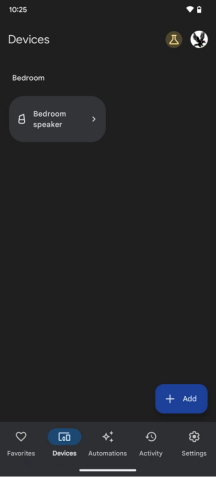
Open Google "Home" APP → Devices → Add device → according to the APP operation guidelines to configure the network, the configuration is complete and can be viewed in the Devices speaker
6.3.2 Add Matter Gateway
Note:If the gateway is powered on within 10 minutes and the gateway is powered on for more than 10 minutes, you need to power off and power on again before operation
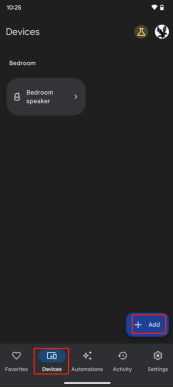
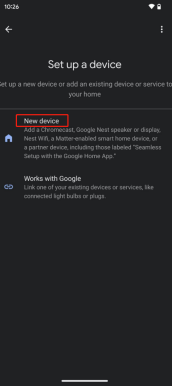
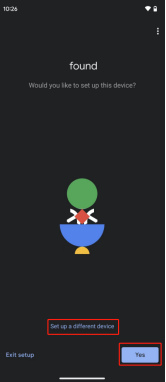
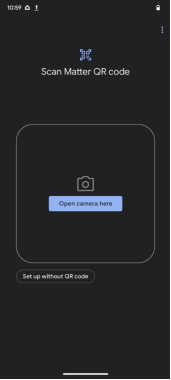
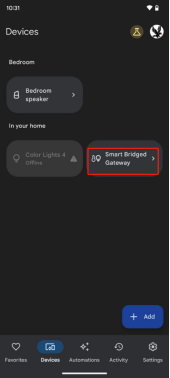
Open Google "Home" APP → Devices → Add →New device → Select the corresponding room → Looking for devices →Set up this device → Scan Matter QR code → According to APP prompts. Scan the QR code of Matter behind the gateway to add, you can see the successfully added Matter Gateway in the device list if you add successfully, if you fail to add, the Matter Gateway will be restored to the factory settings and re-added.
6.3.3 Add lights
Note: Ignore this operation if you have a set of devices
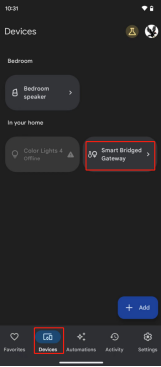
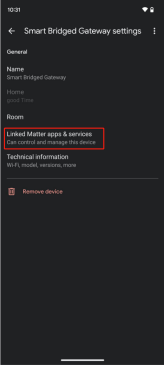
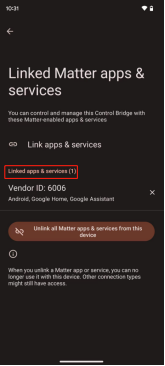
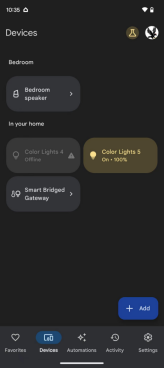
Trigger the gateway to allow pairing: Open Google "Home" APP → Devices → Select the corresponding Bridged Gateway → Linked Matter apps & services → Linked apps & services, at this time, the color of the gateway indicator light will fade, and it will enter the allow pairing mode (at this time, the trigger light will enter the find network pairing mode). At this time, the gateway indicator light color gradient, into the allowed pairing 120S, and at this time the trigger light into the network to find the pairing mode (10S within the continuous power off and on 5 times), at this time the device will enter the automatic network to find the pairing mode, such as the device pairing will be successful in the list of devices will be displayed, that you can control the device, such as adding failure, re-operate to add steps.
7. Recessed Light restore factory settings (trigger light into pairing mode)
Toggle the Light powered on and off 5 times within 10s (pay attention to the power off and on interval 1S), the light blinked three times, and the device reset successfully, at this time the device is in the state of looking for the network for the 60S.
8.Restoring Factory Settings of the Matter Gateway
Long press the RESET button at the bottom of the gateway for 5S, the white light of the indicator light flashes, restoring factory settings is successful and the gateway starts
9. User manual electronic file
For more information on how to use the platform, please download the e-Manual, download link: http://xskylight.com/doc/FSPC999W_manual.html

10. Precautions
1、This product is wireless communication, please do not place the product in a metal box to work, in case the signal is shielded;
2, the surrounding environment temperature range: -25 ℃ ~ +70 ℃, ambient humidity: maximum 95% RH;
3、Avoid using in chemical or combustible gas, saturated salt spray, highly humid for a long time, or another abnormal environment;
4、It should be installed in a place where there is no rain or snow intrusion, and the medium is free of gas and dust sufficient to corrode the metal and destroy the insulation, not to mention the danger of explosion.
11. Warranty
The company's products are free of charge warranty for one year (except for the appearance of parts and personal damage caused by improper use);
The following cases are not covered by the free warranty:
1. Machines that have been disassembled or repaired by non-authorized maintenance centers;
2、Damage caused by natural disasters such as flood, fire, lightning, and so on;
3, due to falling, extrusion, immersion, moisture, and other human-caused damage;
4, product failure caused by not using the product by the rated parameters (voltage, etc.) of the product instruction manual (the shell is not covered by the warranty).